


What's New in Podium
Redesigned job overview
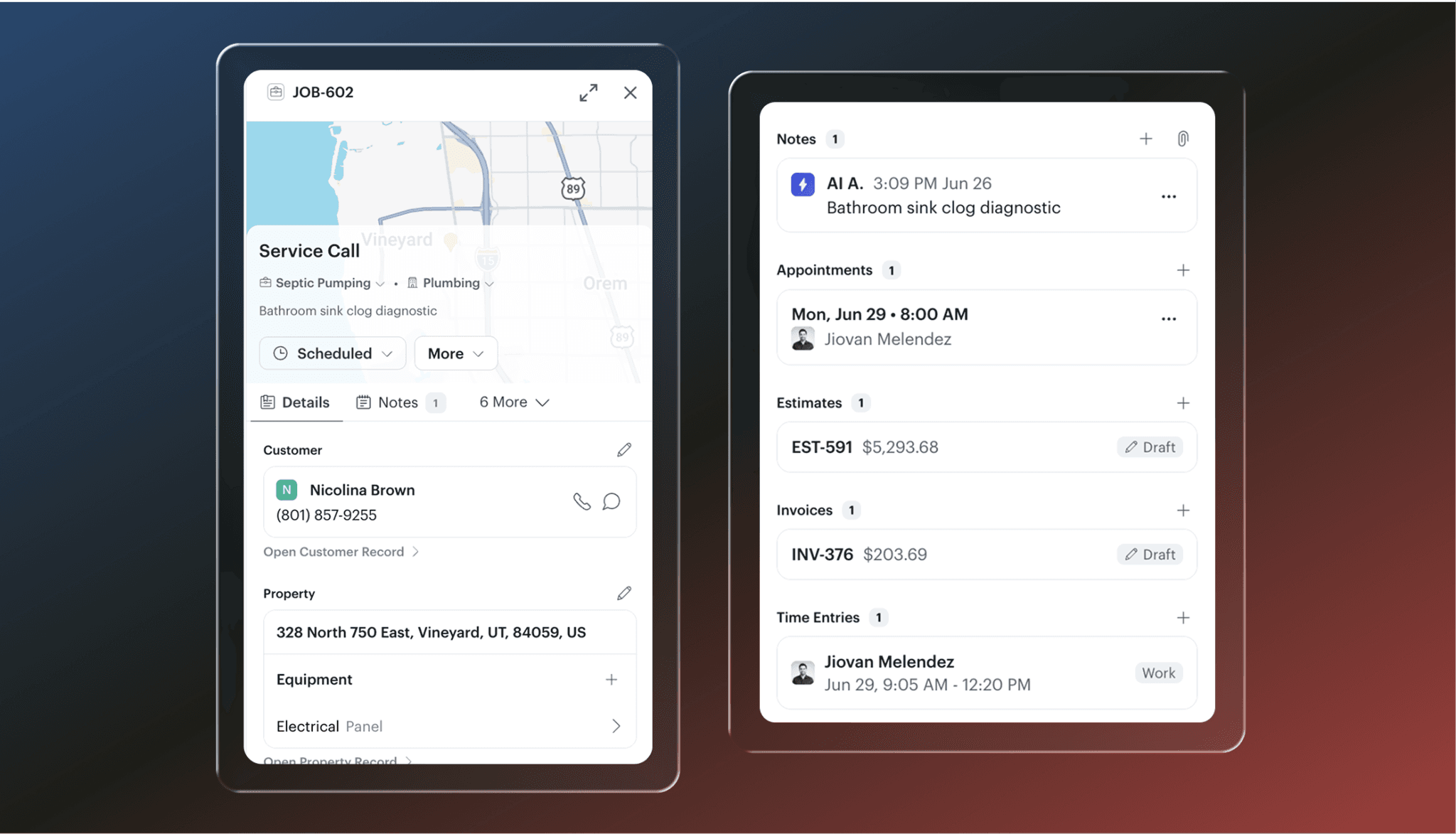
The job overview page has been redesigned to surface everything you need the moment you click into a job. No more digging through separate tabs to piece together what's going on.
Customer: call or message directly from the overview with one tap
Property and equipment: the property on the job and any equipment tied to it
Notes and history: prior appointments and notes for that property
Estimates and invoices: all billing tied to the job in one place
Time entries: hours logged by the tech on the job
Each section expands and collapses as needed, and any tab can still be opened in full for deeper edits.
Keep jobs moving with new home services automations
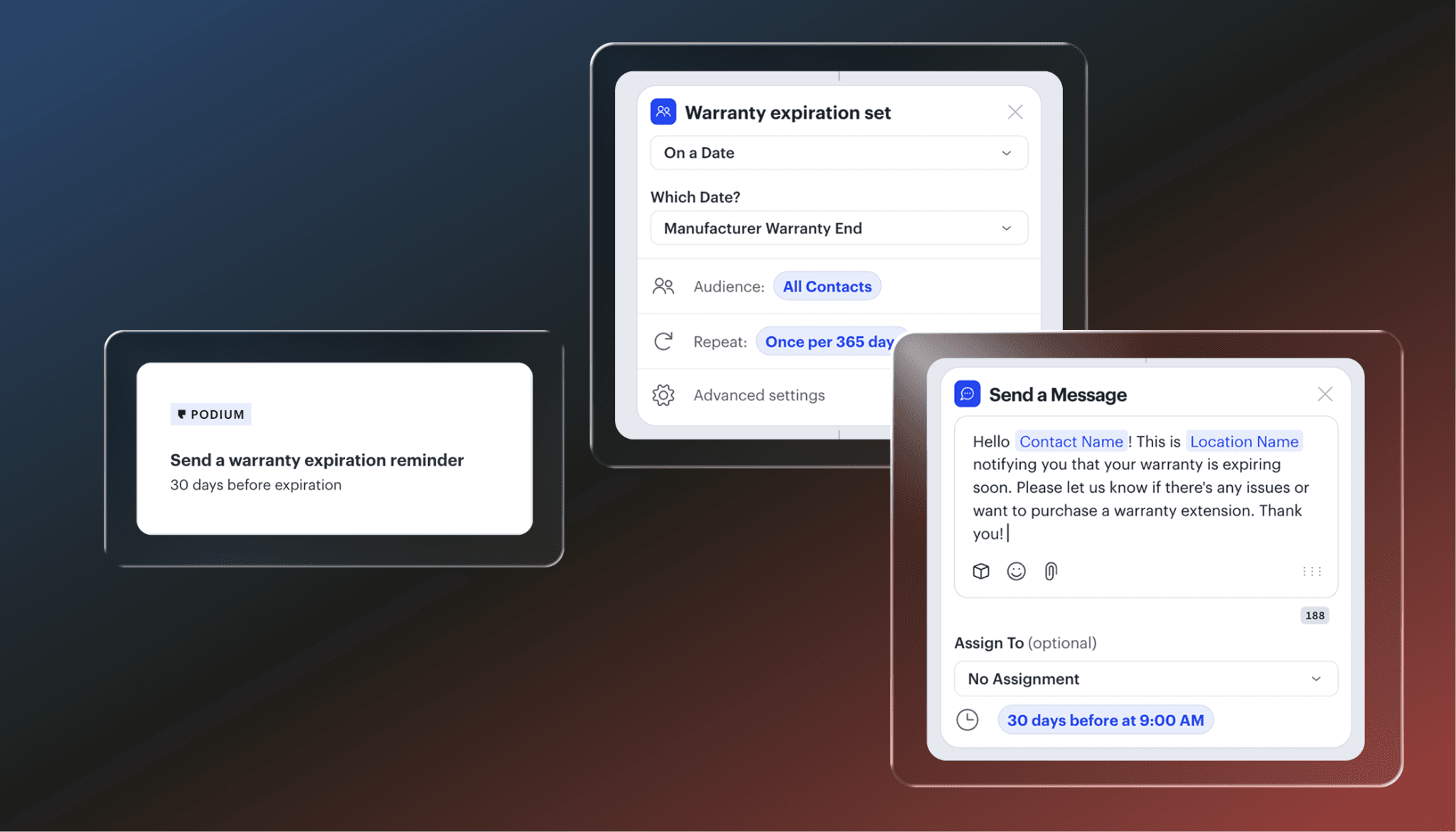
Five pre-built automations are now available for Home Services customers in the Browse Automations page, ready to turn on in minutes. Each one can be fully customized to match your timing and messaging preferences.
7-day on-hold follow-up: Automatically checks in when a job has been sitting on hold for a week and nudges the customer to schedule.
Warranty expiration reminder: Sends a heads-up to the homeowner 30 days before their warranty expires.
7-day post-job thank you: Sends an appreciation message a week after a job wraps up.
Unpaid invoice alerts: Sends three scheduled nudges when an invoice goes overdue.
Post-job review request: Asks for a review right after a job is completed.
Send videos directly from the inbox
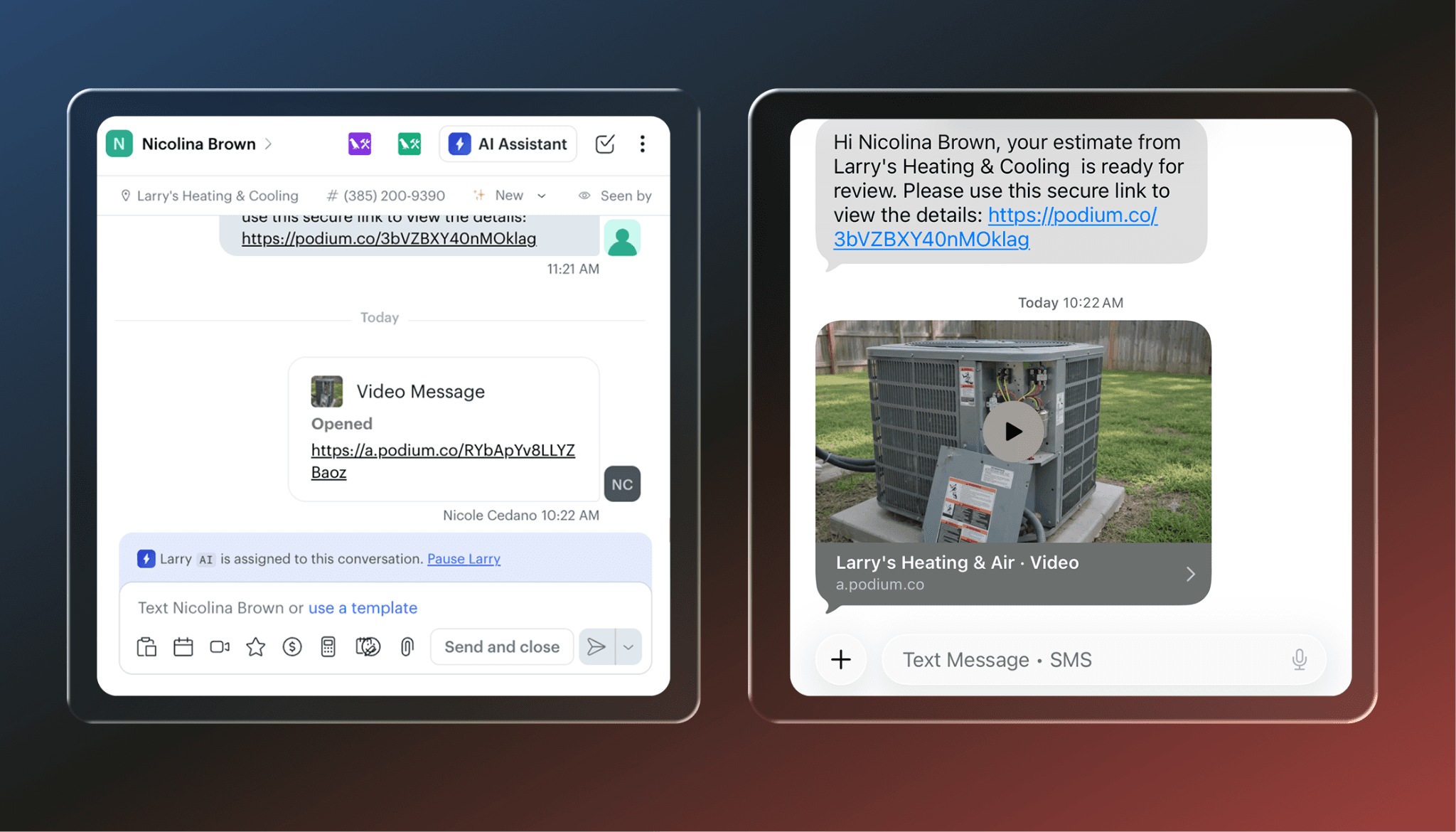
Your techs can now send video messages to customers from the Podium inbox. Film the failing part, send it before the call, and get the approval faster. The customer gets a link, taps it, and watches on a clean landing page with no app download required. Works for post-job walkthroughs too.
Edit estimates until they're approved
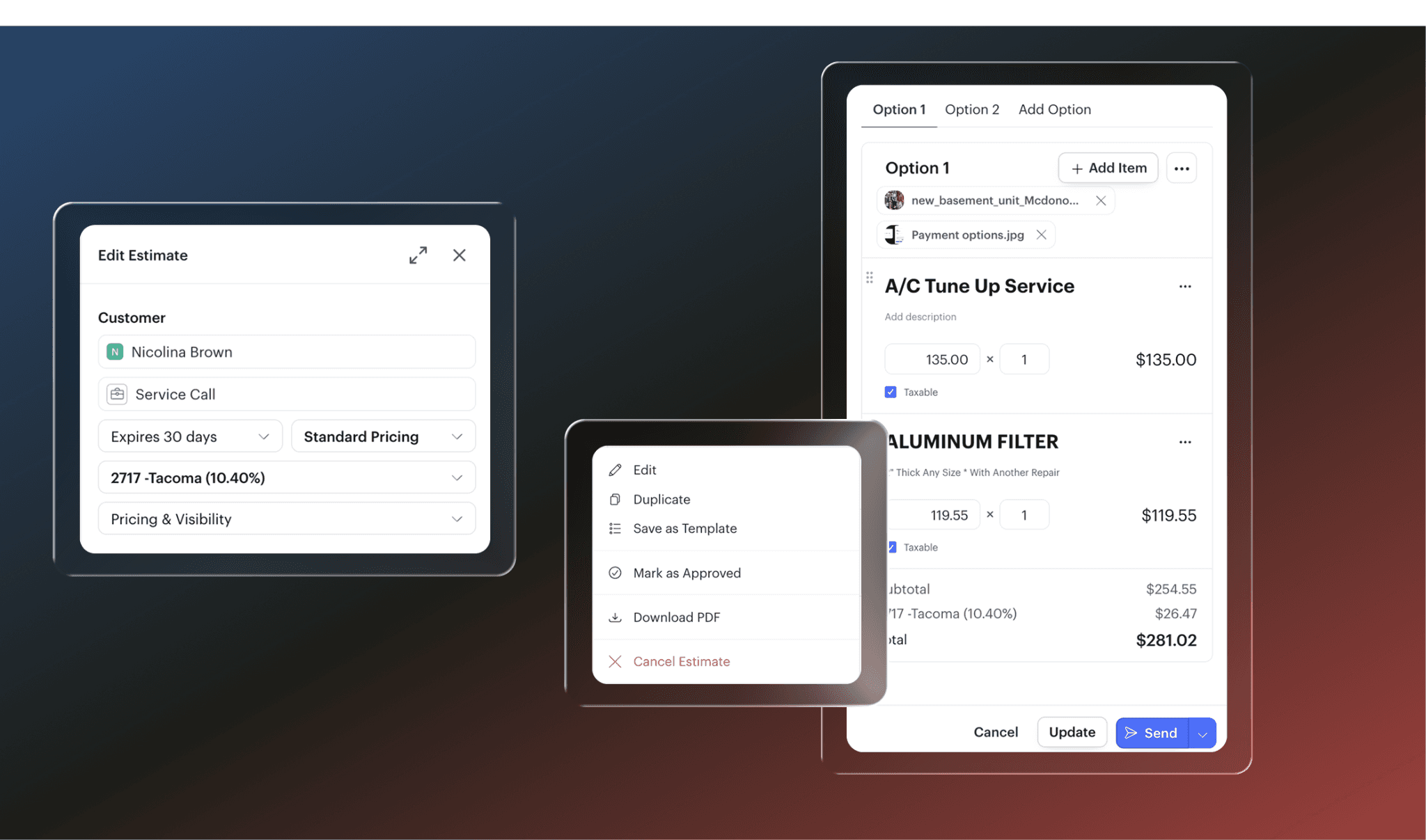
Estimates can now be edited after they've been sent, just like invoices. Update pricing, line items, expiration dates, and more. The customer's link reflects the latest version automatically, and you can re-send to notify them of any changes.
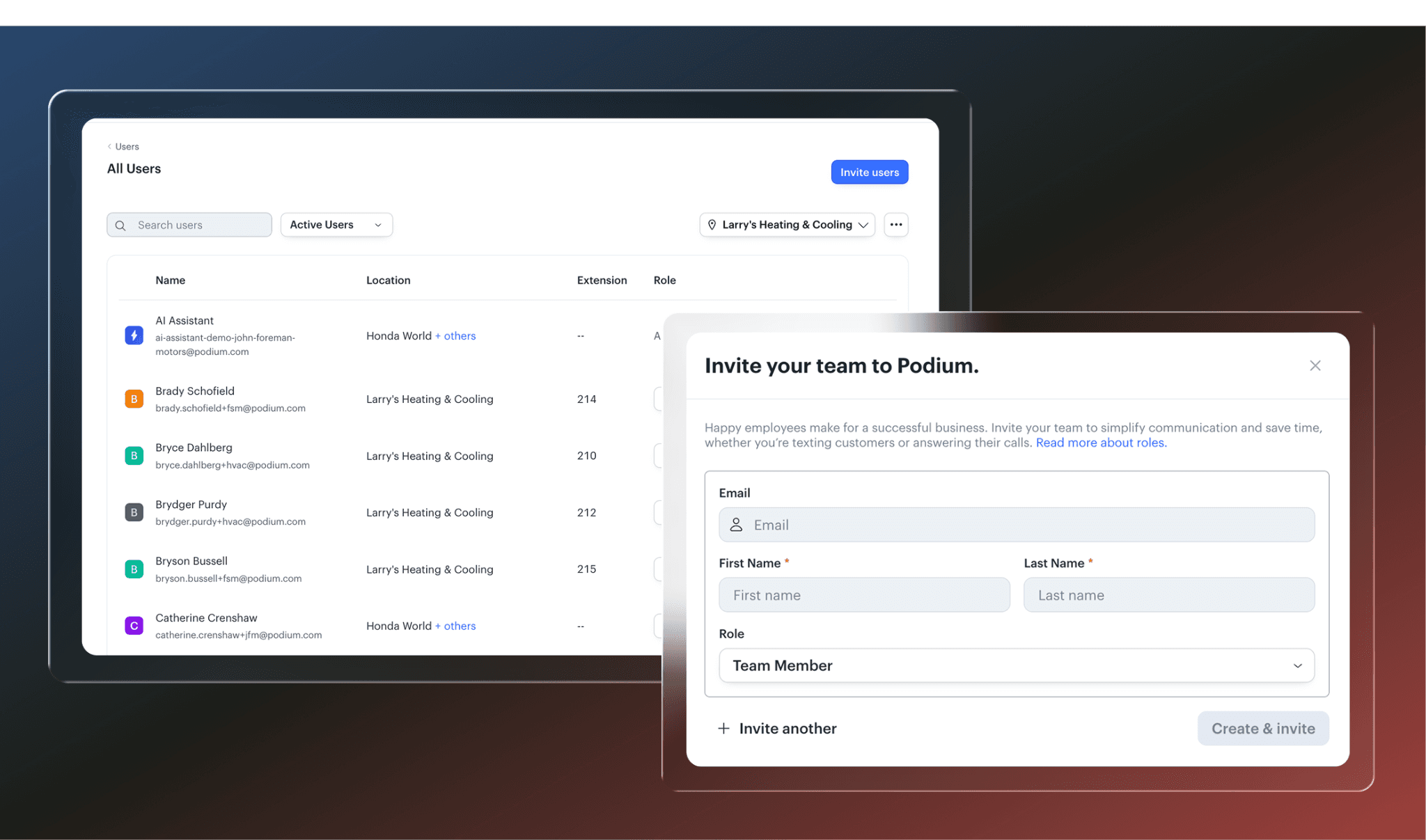
Instant user setup when you send an invite
When you invite a new user from Settings → Users → Invite Users, their account is created immediately. Set their email, assign permissions, and send. They'll get a link to set their password and they're in.
Void manually paid invoices
Invoices that were manually marked as paid can now be voided. If an invoice was marked paid by mistake or needs to be corrected, you're no longer stuck with it.
" height="25.00001156927716px" id="qh_JzPd_3" width="24.95439178069195px"/></svg>)
" height="25px" id="RQ8PlKJvC" width="24.9999882810055px"/></svg>)
" height="25px" id="zElPDUJbT" width="24.999434398319785px"/></svg>)
" width="24.46251333978226px"><path d="M 14.557 10.586 L 23.662 0 L 21.511 0 L 13.597 9.191 L 7.284 0 L 0 0 L 9.555 13.899 L 0 25 L 2.161 25 L 10.505 15.293 L 17.179 25 L 24.463 25 L 14.557 10.586 Z M 11.606 14.022 L 10.635 12.638 L 2.931 1.625 L 6.253 1.625 L 12.466 10.512 L 13.427 11.896 L 21.511 23.449 L 18.189 23.449 L 11.606 14.022 Z" fill="rgb(254, 254, 254)" height="25px" id="yFeonqBTa" transform="translate(0 0)" width="24.46251333978226px"/></g></svg>)
" width="1420.5180000066757px"><path d="M 0 0 L 1420 0 L 1420 296 L 0 296 Z" fill="transparent" height="296px" id="nEUrsAEtA" transform="translate(0.518 9.913)" width="1420px"/><path d="M 1101.408 94.796 L 1162.108 94.796 C 1162.708 101.291 1163.218 106.75 1164.008 115.715 C 1182.088 95.792 1202.098 86.826 1226.818 90.094 C 1238.317 91.244 1249.326 95.332 1258.788 101.966 C 1268.28 108.62 1275.911 117.591 1280.958 128.027 C 1311.458 88.938 1342.858 79.295 1378.608 97.147 C 1390.369 102.775 1400.329 111.571 1407.368 122.546 C 1414.426 133.558 1418.299 146.309 1418.558 159.387 C 1420.848 206.206 1419.188 253.185 1419.188 301.12 L 1358.558 301.12 L 1358.558 258.365 C 1358.558 233.78 1359.078 209.194 1358.008 184.649 C 1356.858 158.948 1347.168 146.994 1329.408 146.317 C 1310.938 145.6 1296.428 157.673 1293.818 181.661 C 1290.848 210.589 1291.678 239.916 1291.008 269.084 C 1290.768 279.006 1291.008 289.007 1291.008 300.443 L 1229.388 300.443 C 1229.388 268.924 1229.628 237.326 1229.388 205.768 C 1229.388 194.531 1230.378 182.258 1226.338 172.337 C 1222.308 162.415 1213.128 148.867 1205.188 148.11 C 1194.468 147.114 1179.828 154.206 1172.318 162.734 C 1165.438 170.703 1163.818 184.729 1163.418 196.205 C 1162.348 230.592 1163.058 265.019 1163.058 300.722 L 1101.408 300.722 Z M 987.455 300.441 C 986.941 293.906 986.466 287.49 985.754 278.366 C 962.024 309.446 931.768 312.912 900.207 300.281 C 867.578 287.251 855.673 258.323 854.803 225.171 C 853.695 182.256 854.526 139.262 854.526 95.072 L 916.264 95.072 C 916.264 118.582 916.066 141.613 916.264 164.604 C 916.264 182.495 916.66 200.466 917.727 218.277 C 918.756 235.371 926.824 247.565 944.938 249.278 C 963.052 250.991 976.183 242.624 981.364 225.37 C 984.657 213.266 986.319 200.777 986.308 188.233 C 986.98 157.83 986.506 127.387 986.506 95.391 L 1047.608 95.391 L 1047.608 300.361 Z M 803.391 300.881 L 744.065 300.881 L 744.065 95.633 L 803.391 95.633 Z M 803.232 54.906 L 743.907 54.906 L 743.907 0.316 L 803.232 0.316 Z M 629.089 0 L 629.089 110.095 C 572.928 79.932 532.31 84.515 500.234 123.524 C 466.458 164.605 465.904 229.913 499.285 270.955 C 506.713 280.676 516.027 288.798 526.669 294.834 C 537.285 300.856 549.013 304.661 561.142 306.02 C 587.522 309.009 609.195 299.087 628.18 278.805 C 629.129 288.567 629.722 294.744 630.276 300.521 L 690.234 300.521 L 690.234 0 Z M 584.279 249.836 C 556.593 249.836 537.649 228.36 537.847 197.479 C 538.044 166.598 557.108 145.957 585.307 146.395 C 611.845 146.754 631.383 168.351 631.7 197.638 C 632.016 226.925 611.727 249.677 584.279 249.638 Z M 148.037 12.277 C 99.35 4.746 49.161 6.698 0 4.507 L 0 301.362 L 63.597 301.362 L 63.597 209.954 C 88.909 208.799 111.453 209.517 133.443 206.409 C 156.213 203.687 177.278 192.891 192.872 175.955 C 208.466 159.018 217.57 137.044 218.555 113.965 C 221.087 66.029 192.808 19.17 148.037 12.277 Z M 153.02 109.542 C 152.565 119.234 148.447 128.392 141.5 135.166 C 134.584 141.91 125.344 145.745 115.685 145.882 C 99.35 146.639 82.976 145.882 65.1 145.882 L 65.1 69.775 C 84.044 69.775 103.108 67.942 121.657 70.293 C 126.279 70.785 130.757 72.192 134.829 74.433 C 138.911 76.679 142.507 79.712 145.409 83.356 C 148.32 87.01 150.482 91.201 151.773 95.69 C 153.066 100.186 153.463 104.893 152.941 109.542 Z M 338.829 89.813 C 324.732 89.898 310.792 92.777 297.815 98.285 C 284.813 103.805 273.03 111.839 263.142 121.926 C 253.226 132.04 245.393 144.003 240.087 157.135 C 234.77 170.292 232.078 184.362 232.162 198.553 C 232.244 212.743 235.1 226.78 240.571 239.874 C 246.03 252.942 254.003 264.811 264.037 274.807 C 274.043 284.775 285.919 292.668 298.984 298.034 C 312.025 303.388 325.998 306.102 340.095 306.019 C 400.963 305.78 448.225 258.721 448.423 198.155 C 448.542 136.672 400.804 89.454 338.829 89.813 Z M 340.688 247.843 C 315.257 248.281 294.256 226.525 293.583 199.031 C 292.911 171.537 314.545 147.231 340.174 147.231 C 365.13 147.231 385.617 169.625 385.894 197.478 C 386.171 225.33 366.514 247.365 340.609 247.843 Z" fill="rgb(254, 254, 254)" height="307.13419463695845px" id="OhFGo_EHq" transform="translate(0 0)" width="1419.7693369032306px"/><path d="M 18.564 59.724 L 2.016 59.724 C 0.756 59.724 0 58.968 0 57.708 L 0 57.036 C 0 55.776 0.588 55.188 1.68 54.768 L 4.116 53.928 C 5.796 53.256 6.384 52.5 6.384 50.736 L 6.384 9.912 C 6.384 8.148 5.796 7.392 4.116 6.72 L 1.68 5.88 C 0.588 5.46 0 4.872 0 3.612 L 0 2.94 C 0 1.68 0.756 0.924 2.016 0.924 L 18.564 0.924 C 19.824 0.924 20.58 1.68 20.58 2.94 L 20.58 3.612 C 20.58 4.872 19.992 5.46 18.9 5.88 L 16.464 6.72 C 14.7 7.392 14.112 8.148 14.112 9.912 L 14.112 24.78 C 14.112 25.368 14.532 25.788 15.12 25.788 L 42.252 25.788 C 42.84 25.788 43.26 25.368 43.26 24.78 L 43.26 9.912 C 43.26 8.148 42.672 7.392 40.992 6.72 L 38.472 5.88 C 37.38 5.46 36.792 4.872 36.792 3.612 L 36.792 2.94 C 36.792 1.68 37.548 0.924 38.892 0.924 L 55.356 0.924 C 56.616 0.924 57.372 1.68 57.372 2.94 L 57.372 3.612 C 57.372 4.872 56.784 5.46 55.692 5.88 L 53.256 6.72 C 51.576 7.392 50.988 8.148 50.988 9.912 L 50.988 50.736 C 50.988 52.5 51.576 53.256 53.256 53.928 L 55.692 54.768 C 56.784 55.188 57.372 55.776 57.372 57.036 L 57.372 57.708 C 57.372 58.968 56.616 59.724 55.356 59.724 L 38.892 59.724 C 37.548 59.724 36.792 58.968 36.792 57.708 L 36.792 57.036 C 36.792 55.776 37.38 55.188 38.472 54.768 L 40.992 53.928 C 42.672 53.256 43.26 52.5 43.26 50.736 L 43.26 32.256 C 43.26 31.668 42.84 31.248 42.252 31.248 L 15.12 31.248 C 14.532 31.248 14.112 31.668 14.112 32.256 L 14.112 50.736 C 14.112 52.5 14.7 53.256 16.464 53.928 L 18.9 54.768 C 19.992 55.188 20.58 55.776 20.58 57.036 L 20.58 57.708 C 20.58 58.968 19.824 59.724 18.564 59.724 Z M 84.525 60.564 C 73.101 60.564 64.365 51.828 64.365 39.06 C 64.365 26.292 73.101 17.556 84.525 17.556 C 95.949 17.556 104.685 26.292 104.685 39.06 C 104.685 51.828 95.949 60.564 84.525 60.564 Z M 85.785 54.432 C 92.505 54.432 97.377 49.56 97.377 40.992 C 97.377 31.668 92.421 23.688 83.265 23.688 C 76.545 23.688 71.673 28.56 71.673 37.044 C 71.673 46.452 76.713 54.432 85.785 54.432 Z M 128.147 59.724 L 113.531 59.724 C 112.271 59.724 111.515 58.968 111.515 57.708 L 111.515 57.12 C 111.515 55.944 112.103 55.356 113.279 55.02 L 114.959 54.516 C 116.639 54.012 117.227 53.172 117.227 51.324 L 117.227 29.568 C 117.227 27.048 116.555 26.04 113.363 25.284 C 112.019 24.948 111.515 24.444 111.515 23.268 L 111.515 22.764 C 111.515 21.84 112.019 21.168 113.279 20.748 L 120.755 17.808 C 122.771 17.052 124.031 17.808 124.031 19.908 L 124.031 21.756 C 124.031 22.596 124.703 22.848 125.375 22.428 L 126.719 21.672 C 130.835 18.984 134.867 17.556 138.814 17.556 C 143.014 17.556 145.704 19.236 147.804 22.008 C 148.474 22.932 148.894 23.016 149.654 22.512 L 151.084 21.588 C 155.194 18.984 159.224 17.556 163.344 17.556 C 169.984 17.556 173.594 21.672 173.594 28.896 L 173.594 51.324 C 173.594 53.172 174.184 54.012 175.944 54.516 L 177.624 55.02 C 178.804 55.356 179.384 55.944 179.384 57.12 L 179.384 57.708 C 179.384 58.968 178.634 59.724 177.284 59.724 L 168.384 59.724 C 167.044 59.724 166.284 58.968 166.284 57.708 L 166.284 30.492 C 166.284 25.704 164.944 23.52 161.164 23.52 C 157.214 23.52 153.434 25.2 150.824 26.712 C 149.484 27.468 148.984 28.392 148.984 29.988 L 148.984 51.324 C 148.984 53.172 149.564 54.012 151.334 54.516 L 153.014 55.02 C 154.184 55.356 154.774 55.944 154.774 57.12 L 154.774 57.708 C 154.774 58.968 153.934 59.724 152.674 59.724 L 143.684 59.724 C 142.424 59.724 141.674 58.968 141.674 57.708 L 141.674 30.492 C 141.674 25.704 140.324 23.52 136.544 23.52 C 132.683 23.52 128.819 25.2 126.383 26.712 C 124.871 27.552 124.451 28.392 124.451 29.988 L 124.451 51.324 C 124.451 53.172 125.039 54.012 126.719 54.516 L 128.399 55.02 C 129.575 55.356 130.163 55.944 130.163 57.12 L 130.163 57.708 C 130.163 58.968 129.407 59.724 128.147 59.724 Z M 221.534 48.132 C 222.544 48.72 222.624 49.812 221.874 51.576 C 219.934 56.028 214.564 60.564 205.324 60.564 C 193.564 60.564 184.824 52.08 184.824 39.06 C 184.824 25.956 193.224 17.556 204.064 17.556 C 212.374 17.556 218.844 22.176 220.694 30.492 C 221.034 32.088 220.444 32.844 219.184 33.264 L 194.234 42.504 C 193.644 42.756 193.474 43.26 193.644 43.848 C 195.574 49.644 200.284 53.592 207.084 53.592 C 212.374 53.592 216.074 51.576 218.174 49.056 C 219.264 47.88 220.444 47.376 221.534 48.132 Z M 203.814 23.016 C 197.174 23.016 192.054 27.972 192.054 35.952 C 192.054 36.12 192.054 36.54 192.134 36.96 C 192.214 37.464 192.554 37.716 193.224 37.38 L 211.374 30.492 C 212.124 30.24 212.634 29.904 212.294 28.896 C 210.954 24.948 207.594 23.016 203.814 23.016 Z M 268.674 60.564 C 262.884 60.564 259.944 59.136 256.834 59.136 C 254.564 59.136 253.224 60.48 251.454 60.48 L 250.864 60.48 C 249.774 60.48 248.934 59.892 248.184 58.38 L 241.464 44.352 C 240.784 42.924 240.954 41.748 242.464 41.076 L 243.144 40.656 C 244.654 39.984 245.664 40.236 246.584 41.664 C 251.794 50.232 259.684 55.104 267.504 55.104 C 275.224 55.104 279.344 51.408 279.344 45.444 C 279.344 39.396 275.064 36.288 267.834 33.852 L 257.924 30.576 C 249.694 27.804 243.304 23.604 243.304 14.952 C 243.304 6.636 249.774 0.084 261.624 0.084 C 265.564 0.084 268.004 1.176 270.694 1.176 C 273.214 1.176 274.134 0.084 275.564 0.084 L 275.984 0.084 C 277.244 0.084 277.664 0.672 278.254 2.016 L 284.304 14.7 C 284.804 15.624 284.464 16.548 283.374 17.22 L 282.954 17.556 C 281.864 18.228 280.604 18.06 279.844 17.052 C 273.044 8.904 268.254 5.376 261.784 5.376 C 254.814 5.376 251.204 8.652 251.204 13.776 C 251.204 18.396 255.154 21.084 261.534 23.268 L 271.364 26.46 C 279.684 29.232 287.574 33.264 287.664 43.848 C 287.824 54.348 279.844 60.564 268.674 60.564 Z M 331.474 48.132 C 332.484 48.72 332.564 49.812 331.804 51.576 C 329.874 56.028 324.504 60.564 315.264 60.564 C 303.504 60.564 294.764 52.08 294.764 39.06 C 294.764 25.956 303.164 17.556 314.004 17.556 C 322.314 17.556 328.784 22.176 330.634 30.492 C 330.964 32.088 330.384 32.844 329.124 33.264 L 304.174 42.504 C 303.584 42.756 303.414 43.26 303.584 43.848 C 305.514 49.644 310.224 53.592 317.024 53.592 C 322.314 53.592 326.014 51.576 328.114 49.056 C 329.204 47.88 330.384 47.376 331.474 48.132 Z M 313.744 23.016 C 307.114 23.016 301.984 27.972 301.984 35.952 C 301.984 36.12 301.984 36.54 302.074 36.96 C 302.154 37.464 302.494 37.716 303.164 37.38 L 321.304 30.492 C 322.064 30.24 322.564 29.904 322.234 28.896 C 320.884 24.948 317.524 23.016 313.744 23.016 Z M 354.714 59.724 L 339.254 59.724 C 337.994 59.724 337.244 58.968 337.244 57.708 L 337.244 57.12 C 337.244 55.944 337.824 55.356 339.004 55.02 L 340.684 54.516 C 342.364 54.012 342.954 53.172 342.954 51.324 L 342.954 29.568 C 342.954 27.048 342.284 26.04 339.084 25.284 C 337.744 24.948 337.244 24.444 337.244 23.268 L 337.244 22.764 C 337.244 21.84 337.744 21.168 339.004 20.748 L 346.484 17.808 C 348.494 17.052 349.754 17.808 349.754 19.908 L 349.754 21.924 C 349.754 22.764 350.594 23.184 351.434 22.344 C 354.374 19.74 358.664 17.724 362.524 17.724 C 364.624 17.724 365.544 18.732 365.384 20.58 L 364.794 26.376 C 364.624 27.888 363.784 28.476 362.864 28.476 C 361.934 28.476 361.434 28.14 360.084 27.384 C 358.664 26.292 357.234 25.536 355.304 25.536 C 351.944 25.536 350.174 27.3 350.174 31.248 L 350.174 51.324 C 350.174 53.088 350.764 54.096 352.444 54.516 L 355.044 55.02 C 356.054 55.188 356.724 55.776 356.724 57.12 L 356.724 57.708 C 356.724 58.968 355.974 59.724 354.714 59.724 Z M 389.414 59.724 L 386.984 59.724 C 385.894 59.724 384.964 59.304 384.544 58.128 L 373.374 28.98 C 372.114 25.62 371.274 24.36 369.844 23.856 L 367.994 23.184 C 366.994 22.764 366.484 22.176 366.484 21 L 366.484 20.412 C 366.484 19.152 367.244 18.396 368.584 18.396 L 375.894 18.396 C 377.154 18.396 377.824 18.816 378.244 19.992 L 388.414 48.72 C 388.664 49.56 389.414 49.644 389.754 48.72 L 397.814 25.788 C 398.234 24.612 397.984 23.94 397.064 23.52 L 394.964 22.764 C 394.034 22.428 393.704 21.756 393.704 21 L 393.704 20.412 C 393.704 19.152 394.454 18.396 395.714 18.396 L 407.314 18.396 C 408.574 18.396 409.324 19.152 409.324 20.412 L 409.324 21 C 409.324 22.008 408.824 22.512 407.984 22.932 L 406.474 23.52 C 405.044 24.108 404.114 25.368 402.854 28.812 L 391.774 58.044 C 391.264 59.304 390.514 59.724 389.414 59.724 Z M 420.814 10.416 C 417.544 10.416 415.194 8.064 415.194 5.208 C 415.194 2.268 417.544 0 420.814 0 C 424.094 0 426.444 2.268 426.444 5.208 C 426.444 8.148 424.094 10.416 420.814 10.416 Z M 429.054 59.724 L 414.434 59.724 C 413.174 59.724 412.414 58.968 412.414 57.708 L 412.414 57.12 C 412.414 55.944 413.004 55.356 414.184 55.02 L 415.864 54.516 C 417.544 54.012 418.134 53.172 418.134 51.324 L 418.134 29.736 C 418.134 27.216 417.454 26.208 414.264 25.452 C 412.924 25.116 412.414 24.612 412.414 23.436 L 412.414 22.932 C 412.414 22.008 412.924 21.336 414.184 20.916 L 421.994 17.808 C 424.094 17.052 425.354 17.808 425.354 19.908 L 425.354 51.324 C 425.354 53.172 425.944 54.012 427.624 54.516 L 429.304 55.02 C 430.474 55.356 431.064 55.944 431.064 57.12 L 431.064 57.708 C 431.064 58.968 430.314 59.724 429.054 59.724 Z M 457.584 60.564 C 444.824 60.564 436.754 51.996 436.754 39.06 C 436.754 26.208 444.654 17.64 455.824 17.64 C 458.514 17.64 460.104 18.396 461.954 18.396 C 463.974 18.396 464.724 17.64 465.734 17.64 C 466.824 17.64 467.244 18.144 467.754 19.152 L 471.864 28.224 C 472.454 29.568 472.034 30.576 471.114 30.996 L 470.774 31.164 C 469.764 31.752 468.764 31.5 467.924 30.492 C 463.384 25.2 460.364 22.764 455.824 22.764 C 449.604 22.764 444.064 27.72 444.064 36.456 C 444.064 46.452 450.024 53.592 459.354 53.592 C 463.884 53.592 466.664 52.416 468.764 50.316 C 470.104 49.056 471.024 48.804 472.034 49.392 C 472.964 49.98 473.464 50.904 472.284 53.004 C 469.934 57.54 464.304 60.564 457.584 60.564 Z M 514.044 48.132 C 515.054 48.72 515.144 49.812 514.384 51.576 C 512.454 56.028 507.074 60.564 497.834 60.564 C 486.074 60.564 477.344 52.08 477.344 39.06 C 477.344 25.956 485.744 17.556 496.574 17.556 C 504.894 17.556 511.364 22.176 513.204 30.492 C 513.544 32.088 512.954 32.844 511.694 33.264 L 486.744 42.504 C 486.164 42.756 485.994 43.26 486.164 43.848 C 488.094 49.644 492.794 53.592 499.604 53.592 C 504.894 53.592 508.584 51.576 510.684 49.056 C 511.784 47.88 512.954 47.376 514.044 48.132 Z M 496.324 23.016 C 489.684 23.016 484.564 27.972 484.564 35.952 C 484.564 36.12 484.564 36.54 484.644 36.96 C 484.734 37.464 485.064 37.716 485.744 37.38 L 503.884 30.492 C 504.644 30.24 505.144 29.904 504.804 28.896 C 503.464 24.948 500.104 23.016 496.324 23.016 Z M 539.214 60.564 C 535.354 60.564 533.004 59.556 530.904 59.556 C 528.974 59.556 528.134 60.48 526.874 60.48 C 525.694 60.48 525.194 59.892 524.684 58.968 L 519.394 48.72 C 518.724 47.46 519.054 46.2 520.154 45.696 L 520.734 45.36 C 521.744 44.856 522.924 45.024 523.764 46.284 C 527.964 52.332 533.004 55.44 538.714 55.44 C 543.924 55.44 546.354 53.088 546.354 49.392 C 546.354 45.948 543.754 43.848 538.464 42.252 L 531.574 40.152 C 524.684 38.052 520.484 35.028 520.484 28.728 C 520.484 22.344 525.444 17.724 534.094 17.724 C 536.784 17.724 538.634 18.396 540.984 18.396 C 542.834 18.396 543.754 17.64 544.594 17.64 C 545.514 17.64 545.854 17.976 546.274 18.816 L 550.894 27.804 C 551.484 28.896 551.144 29.904 550.134 30.408 L 549.884 30.576 C 548.794 31.08 547.874 31.08 546.944 29.988 C 542.074 24.948 538.544 22.428 534.174 22.428 C 529.394 22.428 527.294 24.612 527.294 27.468 C 527.294 30.576 529.644 32.256 535.184 33.936 L 542.074 35.952 C 549.384 38.22 553.584 41.664 553.664 48.3 C 553.754 56.196 547.614 60.564 539.214 60.564 Z" fill="rgb(255, 255, 255)" height="60.5639999988675px" id="gNnZJxcr0" transform="translate(854.634 20.188)" width="553.6649973264012px"/></g></svg>)